After the go-ahead, record each build step
Once HasiruAqua gives you a pond build, call the farmer, then mark each step and add photos as you go.
When HasiruAqua gives you the go-ahead on a pond build, the lead becomes your job. You mark each step from the farm as it's done, with photos. HasiruAqua and the farmer follow the build from these steps.
The farmer's details
Open the job from In progress. Go ahead — farmer details has what you need to get started:
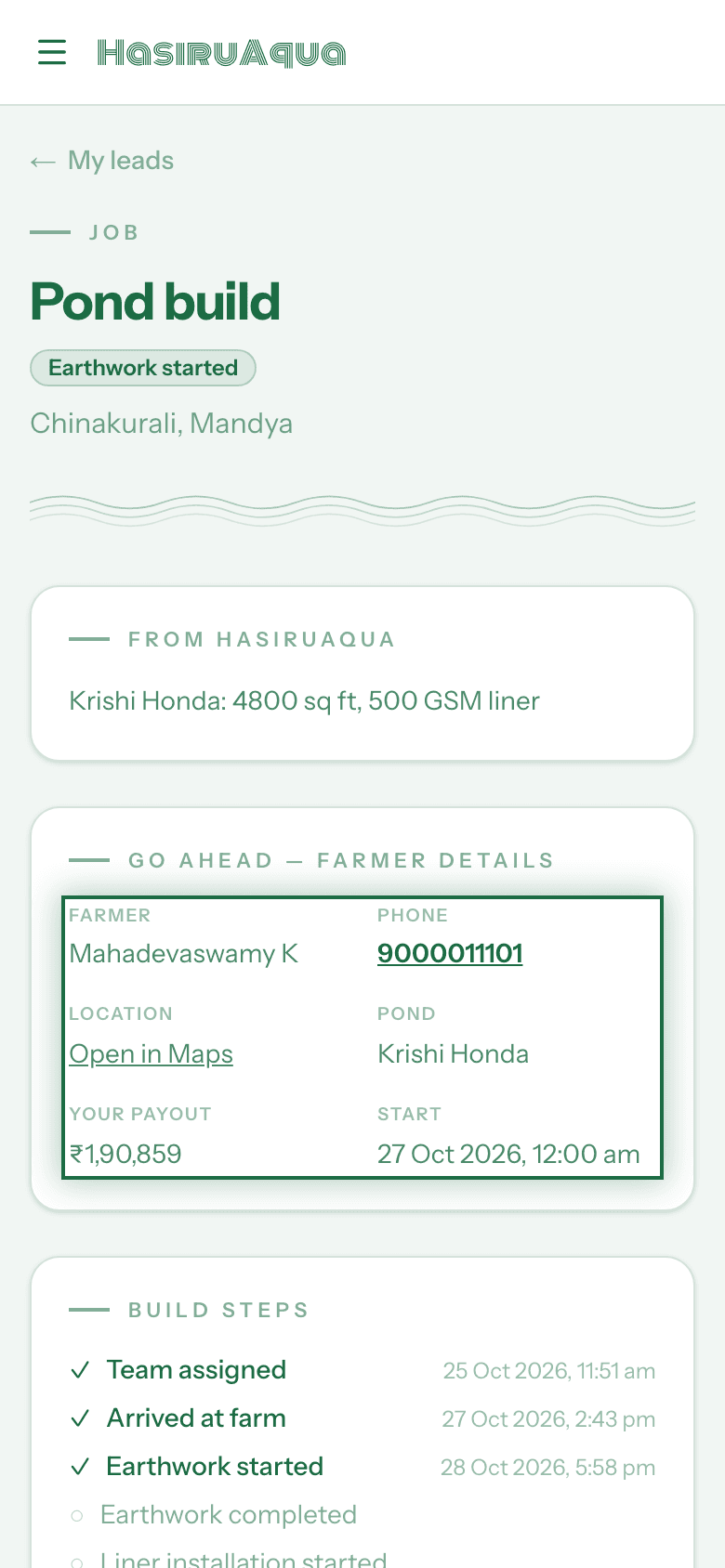
- Farmer and Phone. Tap the number to call.
- Location. Tap Open in Maps for directions.
- Pond: which of the farmer's ponds it is.
- Your payout: what HasiruAqua pays you for the job.
- Start: the start date you set when you assign your team.
Mark the next step
The steps are: Team assigned, Arrived at farm, Earthwork started, Earthwork completed, Liner installation started, Liner installation completed, Farmer sign-off, QC uploaded and HasiruAqua sign-off.
Under Build steps, the steps already done have a tick (✓) and the time. The button below them is the next step, for example Mark: Earthwork completed.
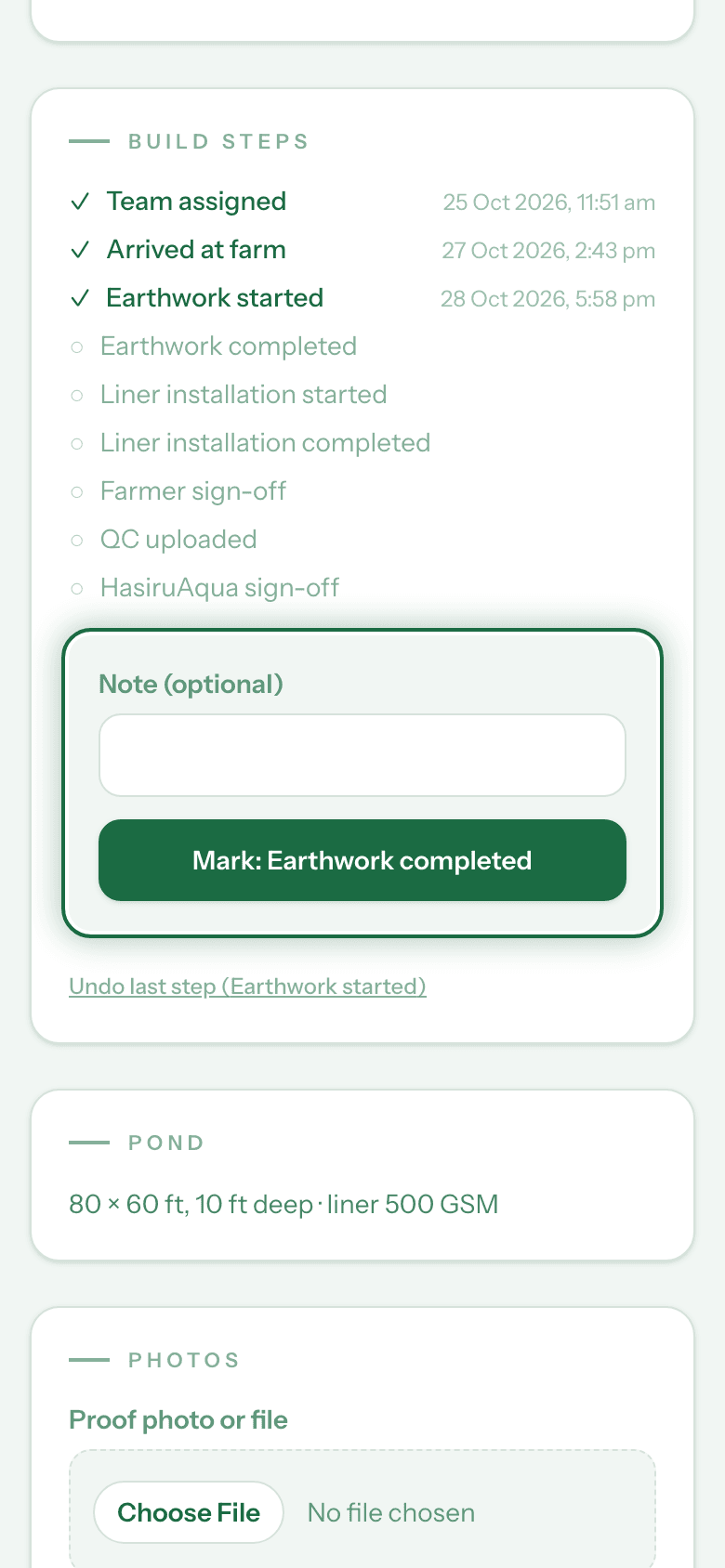
For the first step, Mark: Team assigned, fill in Team lead / crew (for example "Raju's crew") and Start date. Both are needed.
Add a Note if it helps HasiruAqua, for example "rain stopped work for a day". It's optional.
When the step is done, tap the Mark: … button. It gets a tick and the time, and the button moves on to the next step.
Tapped it too early? Tap Undo last step (…) under the button, then OK. The step comes off.
For the last steps, from Farmer sign-off to HasiruAqua's sign-off, see Finish a build.
Add photos as you go
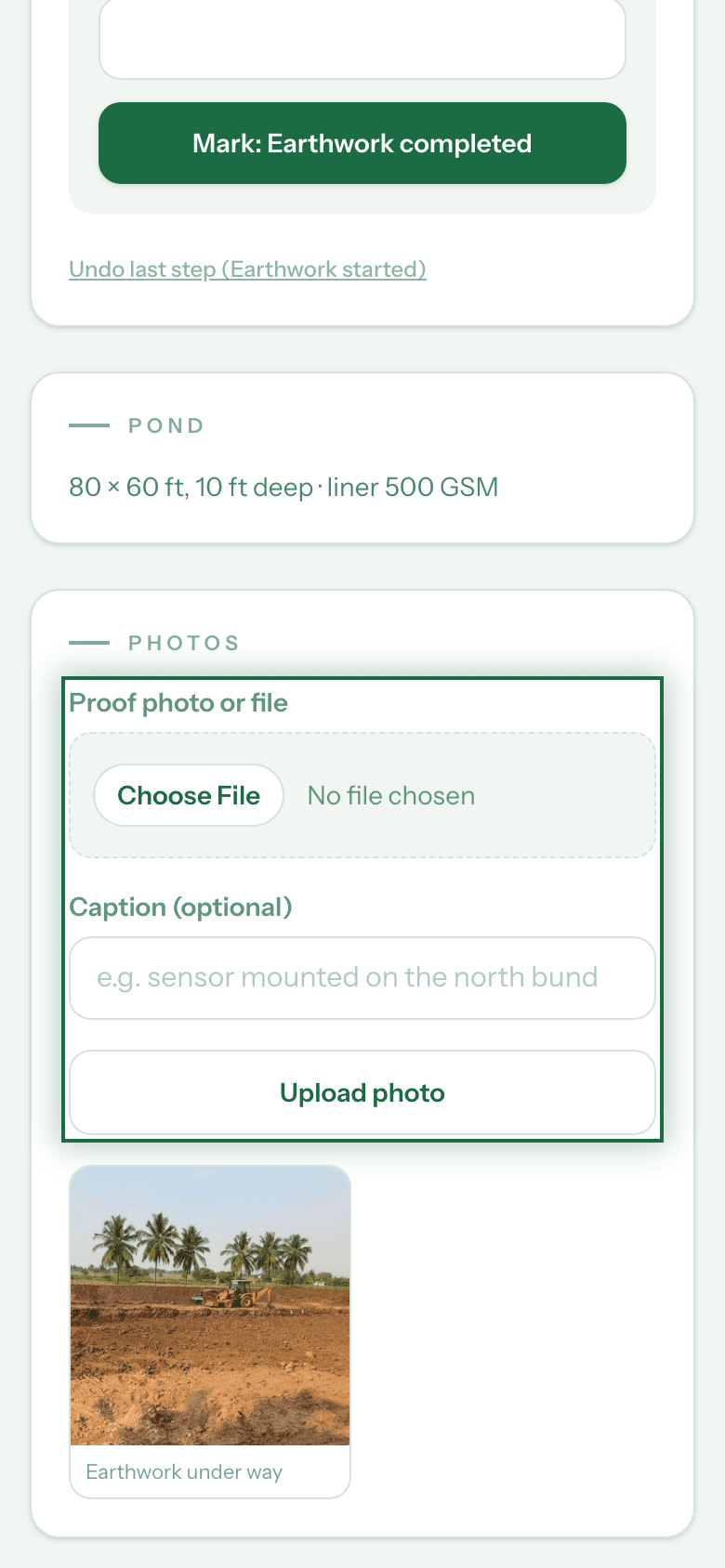
HasiruAqua sees your photos. Add them at each stage: the earthwork, the liner going in, the bund.
Under Photos, tap the box under Proof photo or file. Your phone offers the camera or your photos. A PDF works too, up to 15 MB.
Add a Caption if you like, for example "liner laid along the north bund".
Tap Upload photo. It appears under the button.
If it doesn't work
- It says "Choose a file to upload". No photo was picked. Tap the box under Proof photo or file first.
- It says "File is too large (max 15 MB)". Take the photo again at a smaller size, or send a different one.
- It says "Couldn't record that step". Check your internet and try again. If it keeps failing, call HasiruAqua.
More for vendors
- Signing in as a vendorSign in with Google, using the Gmail address you gave HasiruAqua when you joined.
- My leads, the work HasiruAqua sends youEvery lead HasiruAqua sends you, in four tabs, from new to finished.
- Send a quote, or pass on a leadOpen a new lead, check the work, and send HasiruAqua your price, or say you're not interested.
- A seed order after the go-aheadFor hatcheries: the farmer's details, what to supply, and photos of the delivery.
- Finish a build, from the farmer's sign-off to HasiruAqua'sThe farmer checks the pond, you upload QC photos, and HasiruAqua signs the build off.
- My profile, your business, rates and paymentKeep your business details, your rates and where HasiruAqua pays you up to date.
Was this the right page? Back to help home